
NewsNEWCENTER
Featured products
Contact Us
Allen Bradley 1756-CNB/E Troubleshooting Guide: ControlNet Communication Fault Diagnosis and Repair
2026-10-29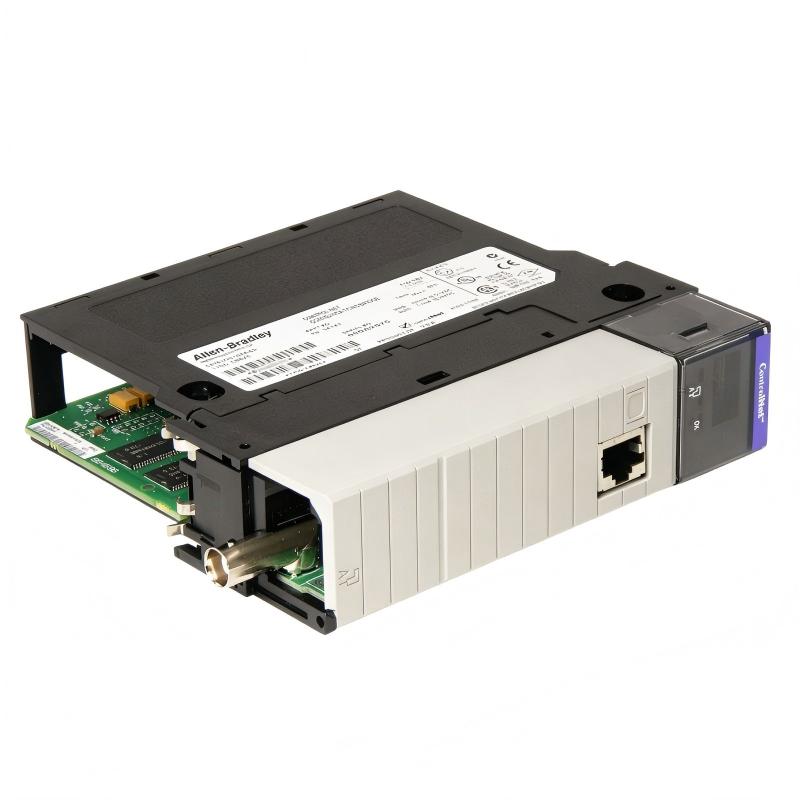
The Allen Bradley 1756-CNB/E ControlLogix ControlNet Bridge Module provides a communication path between a ControlLogix chassis and a ControlNet industrial network. It is commonly used in legacy automation systems that rely on ControlNet for remote I/O communication, controller-to-controller data exchange, and distributed control applications.
When the 1756-CNB/E experiences communication loss, network errors, abnormal status indicators, or connection failures, the cause may involve the module itself, ControlLogix backplane, network address, ControlNet coaxial cabling, network configuration, or connected devices. This guide outlines a structured approach to diagnosing these problems and restoring reliable communication.
Table of Contents
- 1. Overview of Common Faults
- 2. Safety Precautions
- 3. Interpreting Status Indicators and Display Messages
- 4. Troubleshooting Communication Loss
- 5. Resolving Node Address and Duplicate Node Faults
- 6. Diagnosing ControlNet Cable and Network Faults
- 7. Troubleshooting Configuration and Connection Errors
- 8. Diagnosing Backplane and Internal Module Faults
- 9. Troubleshooting Redundant ControlNet Systems
- 10. Module Replacement and Recovery
- 11. Frequently Asked Questions
- 12. Technical Summary
1. Overview of Common Faults
The 1756-CNB/E communicates through the ControlLogix backplane and the ControlNet network. A failure in either communication path can interrupt data exchange with remote devices. The first step in troubleshooting is to determine whether the problem affects one remote device, several devices, the entire network, or the bridge module itself.
| Observed Symptom | Potential Cause | Initial Diagnostic Action |
|---|---|---|
| Module display is blank and OK indicator is off | Chassis power problem, poor seating, or internal module fault | Check chassis power and module seating under the approved procedure. |
| ControlNet devices are unavailable | Cable fault, invalid node address, network configuration issue, or inactive network node | Inspect channel indicators and verify the physical network. |
| Only one remote device has a fault | Remote device power, address, configuration, or local wiring issue | Inspect the affected device and its communication path. |
| Several connections time out | Network traffic overload, communication disruption, or configuration problems | Review connection diagnostics, network loading, and recent changes. |
| Module displays a configuration error | Network parameters or configuration do not match the installed system | Compare the controller project with the actual network configuration. |
| Fault persists after a restart | Underlying hardware, address, cabling, or configuration problem | Capture diagnostic information and isolate the fault before replacing parts. |
2. Safety Precautions
ControlNet communication modules are often installed in systems that control machinery, production lines, process equipment, and remote I/O. A communication interruption can affect equipment operation even when the module itself carries no direct field power.
- Follow plant lockout/tagout and electrical safety procedures before removing the module or changing wiring.
- Confirm the process is in a safe state before testing communication-dependent equipment.
- Do not remove or insert the module under power unless the exact hardware instructions, system design, and site authorization explicitly permit it.
- Do not disconnect network connectors or change node addresses on an operating network without assessing the impact on other nodes.
- Do not bypass interlocks or force outputs to conceal communication faults.
- Back up the controller project and record existing settings before making configuration changes.
For a running production system, coordinate troubleshooting with the control-room operator and follow the approved maintenance and change-management process.
3. Interpreting Status Indicators and Display Messages
The 1756-CNB/E uses a module status indicator, a scrolling alphanumeric display, and ControlNet channel indicators. These diagnostics help distinguish a module fault from a network or configuration issue. Interpret the exact display message using documentation for the installed series and firmware.
| Display or Indicator | Possible Meaning | Recommended Action |
|---|---|---|
| OK indicator off, no display | Power supply issue, poor backplane connection, or internal fault | Check chassis power, connectors, and module seating. If the condition persists, evaluate the module for replacement. |
| Address fault message | Invalid node address | Check the hardware address switches and applicable network address restrictions. |
| BPA# ERR | Backplane slot-address inconsistency, potentially associated with excessive backplane noise | Document the message and follow the applicable module and chassis diagnostic procedure. |
| BPRX ERR | Excessive backplane multicast receiver CRC errors | Investigate the reported module fault and follow the manufacturer’s replacement guidance. |
| BPIC ERR or CNIC ERR | Internal module hardware fault | Record the diagnostic message and evaluate the module for replacement. |
| DUPL NODE | Duplicate ControlNet node address or a temporary condition during a supported redundant-system switchover | Check address uniqueness and the redundancy status before making changes. |
| CNFG ERR | Incorrect ControlNet network configuration | Review the network configuration and the controller project. |
| NET ERR | Network cabling problem or no other active network nodes | Inspect the cable, taps, connectors, and status of other nodes. |
| BOOT | Invalid firmware or startup condition requiring diagnosis | Verify firmware requirements and follow the approved firmware recovery procedure. |
| Flashing green with OK displayed | Normal operation may be present, but no connections have been established through the module | Check whether the expected controller or remote-device connections have been configured and established. |
Some messages are specific to redundant configurations or particular firmware versions. Do not apply a corrective action solely because a message resembles a fault described for another ControlNet module variant.
4. Troubleshooting Communication Loss
Step 1: Determine the scope of the failure
Check whether the fault affects all devices on the network, only devices accessed through the 1756-CNB/E, or one remote node. This distinction narrows the search area.
- All devices unavailable: investigate module power, node addressing, network cabling, and network-wide configuration.
- Several devices unavailable: check shared network segments, communication paths, and connection capacity.
- One device unavailable: inspect that device’s power, address, configuration, and local connections.
- Intermittent communication: investigate loose connectors, cable damage, electrical noise, and network loading.
Step 2: Check module and chassis status
Inspect the OK indicator and read the full scrolling display. Confirm that the chassis power supply is operating normally and that other modules in the chassis do not show related faults.
If the display is blank, verify chassis power and connector condition. If the module remains unresponsive after the power and seating checks, follow the manufacturer’s diagnostic process rather than repeatedly cycling power.
Step 3: Check the ControlNet network
Inspect the channel indicators and compare them with the network’s expected operating condition. Check the coaxial cable, BNC connectors, taps, and other network components for physical damage or loose connections.
Confirm that at least one other required node is online. A bridge may be functioning correctly at the hardware level but still be unable to exchange data when the network has no other active nodes.
Step 4: Verify controller diagnostics
Use the installed programming software to inspect the module status, connection faults, and remote I/O configuration. If the communication bridge itself reports a fault, investigate it before troubleshooting lower-level devices in the controller’s I/O tree.
Record the fault codes and the time at which communication was lost. Correlate these events with recent configuration changes, maintenance work, power interruptions, or network modifications.
5. Resolving Node Address and Duplicate Node Faults
Each ControlNet node must use an address that is valid for the network and unique among active nodes. A duplicate address can prevent devices from communicating correctly, while an invalid address can prevent the bridge from operating normally.
Recommended troubleshooting procedure
- Record the current address shown by the module’s hardware switches.
- Compare the setting with the network address plan and controller configuration.
- Check other active nodes for duplicate addresses.
- Confirm any restrictions imposed by the network’s maximum usable node address and redundancy design.
- If the address must be changed, plan the interruption and follow the module-specific power-down and removal procedure.
- Set a valid, unique address and verify the setting before restoring operation.
- Check the display and network indicators after startup, then confirm communication with the required devices.
For the 1756-CNB/E, address restrictions depend on the system arrangement. In the documented Series E instructions, address 00 is invalid, and address 99 is invalid for redundant control; redundant systems generally restrict the range to 01–98. Verify the exact requirements for the installed configuration before changing the switches.
If a DUPL NODE message appears during a redundant-system switchover, determine whether the condition is temporary and expected before changing the address. An unnecessary address change can introduce an additional fault.
6. Diagnosing ControlNet Cable and Network Faults
ControlNet relies on a specified coaxial cabling system and compatible network components. Poor connections, damaged cable, incorrect termination, or a network topology that differs from the design can cause communication errors and intermittent node availability.
Physical inspection checklist
- Check for damaged, crushed, sharply bent, or improperly supported coaxial cable.
- Inspect BNC connectors and network taps for damage or loose fittings.
- Confirm that the installed cable type and network components match the system design.
- Check that required termination components are present in the specified locations.
- Inspect for recent changes to network routing, connectors, taps, or connected nodes.
- Review whether channel faults appeared after maintenance or equipment installation.
Understanding channel indicator patterns
ControlNet channel indicators can provide clues about the network condition. The meaning depends on the combination of indicators and their steady, flashing, or alternating states.
| Observed Pattern | Possible Interpretation | Diagnostic Focus |
|---|---|---|
| Both channel indicators off | Channel disabled, module condition, or no expected channel activity | Check module status and network configuration. |
| Steady red indication | Possible faulted module or channel condition | Review the module display and network diagnostics. |
| Flashing red/off | Possible media fault, absent active nodes, or invalid network setup | Inspect cable continuity, connectors, taps, and active nodes. |
| Alternating red/green | Possible node configuration or duplicate-address issue | Verify node address and network configuration. |
| Flashing green/off | Temporary network errors may be occurring | Review network stability, cable condition, and related node diagnostics. |
These patterns are diagnostic clues rather than definitive proof of a particular failure. Check the exact indicator table for the module revision and note that channel indicators may not be meaningful when communication is connected only through the network access port (NAP).
7. Troubleshooting Configuration and Connection Errors
If the 1756-CNB/E appears operational but remote I/O or controller-to-controller data is unavailable, the problem may lie in the controller project or network configuration rather than in the physical module.
Check the following configuration items
- Module identity: Verify that the configured module type and series correspond to the installed hardware.
- Chassis slot: Confirm that the project references the correct physical slot.
- Network address: Check that the configured address matches the hardware switches.
- Communication path: Verify that remote devices are accessed through the correct bridge and network route.
- Connection status: Inspect the controller’s I/O tree and module properties for connection faults.
- Network schedule: Where scheduled communication is used, confirm that the network configuration reflects the intended topology and device requirements.
- Connection capacity: Check whether the number of configured connections and network traffic is within the supported limits.
If the fault began after a project download or network reschedule, compare the current configuration with the last known working backup. Avoid changing multiple parameters at once because doing so makes it harder to identify the root cause.
When communication traffic is excessive
Excessive network traffic can contribute to connection timeouts. Review the number of configured connections, communication update requirements, and overall ControlNet loading. If the system consistently exceeds the supported capacity, an engineered network redesign or traffic distribution strategy may be required.
Do not add another bridge module or change network scheduling without evaluating the complete network architecture and the effect on connected controllers and remote I/O.
8. Diagnosing Backplane and Internal Module Faults
When a display reports an internal hardware fault, or a backplane diagnostic persists after external causes have been investigated, the module or chassis may require replacement. Backplane faults should not be assumed to be ControlNet cable faults because they concern communication or hardware conditions within the ControlLogix chassis.
Recommended diagnostic sequence
- Record the exact diagnostic message and module status indicator.
- Check chassis power and review whether adjacent modules report related errors.
- Inspect the module’s seating and the visible condition of its backplane connector, following approved isolation procedures.
- Review the history of the fault and determine whether it appeared after a chassis change, maintenance work, or electrical disturbance.
- Follow the applicable manufacturer procedure for the reported error.
- If the diagnostic specifically indicates an internal hardware failure and persists, evaluate the module for replacement.
Messages such as BPA# ERR, BPRX ERR, BPIC ERR, and CNIC ERR have specific diagnostic meanings. Some documented conditions require replacement of the module or chassis. Do not attempt component-level repairs on the module or replace the chassis without confirming the applicable diagnostic instructions.
9. Troubleshooting Redundant ControlNet Systems
Redundant ControlNet installations have additional requirements for module compatibility, node addressing, partner status, and switchover behavior. A fault that appears during a switchover may have a different cause from the same symptom on a standalone network.
Check redundancy-related conditions
- Confirm that the installed module type is approved for its role in the redundant architecture.
- Verify that the primary and secondary chassis use the correct module types and compatible revisions.
- Check that the node addresses comply with the redundant network restrictions.
- Review the redundancy module’s status and determine whether the bridge is waiting for its partner.
- Inspect whether duplicate-address indications occur only during switchover or remain after the system stabilizes.
- Check compatibility messages and firmware requirements before replacing a module.
A standard 1756-CNB/E should not be assumed to be interchangeable with a redundant 1756-CNBR variant. Installing an incompatible module in a redundant chassis can prevent the intended redundancy function. Verify the approved hardware configuration before replacement.
10. Module Replacement and Recovery
Replacement is appropriate when diagnostics and controlled testing indicate a persistent internal module fault. However, replacing the bridge without correcting a network address, cable, configuration, or chassis problem may not restore communication.
Before replacement
- Record the existing catalog number, series, firmware information, node address, chassis slot, and diagnostic messages.
- Back up the controller project and retain the existing network configuration.
- Confirm that the replacement is compatible with the chassis, controller, firmware, and network architecture.
- Check whether the system requires a specific redundancy-compliant module.
- Plan the interruption and follow the approved isolation and module-removal procedure.
After replacement
- Verify the replacement module’s identity and condition.
- Set the required node address according to the approved network plan.
- Install the module in the correct chassis slot under the authorized procedure.
- Reconnect the network using the specified components and topology.
- Check the module display, status indicator, and channel indicators.
- Verify controller configuration and establish the required communication connections.
- Test the intended remote I/O or data exchange and document the results.
The 1756-CNB/E belongs to a legacy ControlNet product family. A proposed replacement must be evaluated as an engineering change rather than assumed to be a simple plug-in substitution. Confirm the replacement model’s connection capacity, firmware compatibility, redundancy behavior, and configuration requirements.
11. Frequently Asked Questions
Why is the 1756-CNB/E not communicating with remote I/O?
Possible causes include an invalid node address, a ControlNet cable or tap fault, an incorrect controller configuration, a missing active network node, or a module hardware problem. Start with the module display and channel indicators, then verify cabling, addressing, and controller diagnostics.
What does NET ERR mean on the 1756-CNB/E?
NET ERR indicates a network cabling problem or that no other active nodes are present on the network. Inspect the cable, connectors, taps, and other nodes, and verify the network configuration.
What should I do if the OK indicator is off?
Check the chassis power supply, inspect cable connectors, and confirm that the module is firmly seated using the approved isolation procedure. If the indicator remains off after these checks, follow the manufacturer’s instructions for evaluating the module for replacement.
Why does the module display DUPL NODE?
The message can indicate that another node is using the same ControlNet address. In redundant systems, it may also appear temporarily during a supported chassis switchover. Confirm the address plan and redundancy status before changing any settings.
Can a faulty ControlNet cable cause intermittent communication?
Yes. Damaged coaxial cable, loose BNC connectors, defective taps, or incorrect termination can cause communication errors. Inspect the physical network and compare the observed indicator patterns with the module’s diagnostic documentation.
Should I replace the module whenever a red indicator appears?
No. A red indicator may represent an address, network, configuration, or hardware fault. Read the complete display message and investigate the indicated condition before deciding whether replacement is necessary.
12. Technical Summary
The Allen Bradley 1756-CNB/E ControlLogix ControlNet Bridge Module supports communication between a ControlLogix chassis and a ControlNet industrial network. Its module status display, OK indicator, and network channel indicators provide important diagnostic information when communication is interrupted.
A reliable troubleshooting process starts by identifying the scope of the fault, checking chassis power and module status, verifying node addressing, inspecting the ControlNet physical network, and reviewing controller configuration. Backplane and internal hardware errors should be evaluated separately from external network faults, while redundant systems require additional checks for module compatibility and switchover behavior.
Technical Summary: Correct diagnosis of the 1756-CNB/E helps reduce unnecessary hardware replacement and restore reliable ControlNet communication. Always verify the exact module revision, network configuration, and manufacturer diagnostic guidance before making changes to a production control system.