
NewsNEWCENTER
Featured products

Contact Us
Allen-Bradley 1738-AENT ArmorPOINT EtherNet/IP Adapter Troubleshooting and Fault Diagnosis Guide
2026-10-23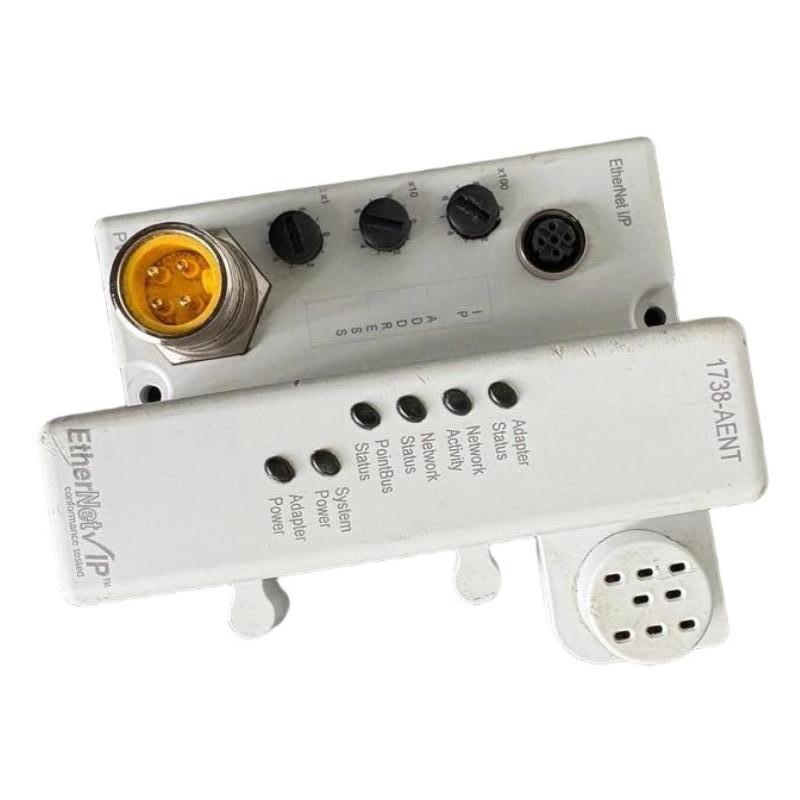
The Allen-Bradley 1738-AENT ArmorPOINT EtherNet/IP Adapter provides network communication between a compatible industrial controller and distributed ArmorPOINT I/O modules. When the adapter experiences a communication fault, power problem, configuration error, or POINTBus failure, the controller may lose access to remote input and output data. These conditions can interrupt machine operation, generate PLC alarms, or prevent the I/O assembly from entering its normal operating state.
This troubleshooting guide explains how to diagnose common Allen-Bradley 1738-AENT faults, interpret status indicators, investigate EtherNet/IP communication failures, check power and POINTBus conditions, and verify corrective actions. The procedures are intended for maintenance engineers and industrial automation technicians working with existing ArmorPOINT installations.
Product lifecycle consideration: The 1738-AENT is a discontinued model. Before arranging repairs or purchasing a replacement, verify the exact part number, series, firmware requirements, and compatibility with the existing controller project.
Table of Contents
- 1. Troubleshooting Overview
- 2. Safety Precautions
- 3. Understanding Status Indicators
- 4. Diagnosing Power Supply Problems
- 5. EtherNet/IP Communication Faults
- 6. Diagnosing POINTBus and I/O Module Faults
- 7. IP Address and Configuration Problems
- 8. Step-by-Step Troubleshooting Procedure
- 9. Repair and Replacement Considerations
- 10. Post-Repair Verification
- 11. Preventive Maintenance
- 12. Technical FAQs
- 13. Technical Summary
1. Troubleshooting Overview
The 1738-AENT is an EtherNet/IP adapter rather than a standalone programmable controller. Its operation depends on several interconnected elements:
- A suitable 24 V DC power supply.
- A functioning adapter and internal electronics.
- A correctly assembled ArmorPOINT I/O backplane.
- Compatible I/O modules and the required terminating base.
- A working Ethernet cable and network connection.
- A unique, correctly configured IP address.
- A compatible PLC project and an established I/O connection.
A failure in any one of these areas may produce symptoms that appear to indicate an adapter fault. For example, an adapter may respond on the network while its I/O connection remains unavailable. Likewise, the adapter may be powered correctly but unable to establish normal operation because a module is missing from the POINTBus assembly.
Basic diagnostic principles
- Record all indicator states and controller fault messages before resetting the equipment.
- Separate power faults, Ethernet faults, configuration faults, and local I/O faults.
- Check the physical installation before replacing electronic components.
- Use the correct documentation for the installed adapter series.
- Change one variable at a time and record the result.
- Do not assume that a network connection proves that the entire I/O system is healthy.
2. Safety Precautions
Industrial control equipment may be connected to hazardous electrical supplies and machinery capable of unexpected movement. Follow the site’s electrical safety, process isolation, and maintenance procedures throughout troubleshooting.
- Place the controlled machine or process in a safe state before inspection.
- Apply lockout/tagout procedures where required and isolate all relevant power sources.
- Remember that external field wiring may have a separate power source from the adapter.
- Verify the absence of hazardous voltage before handling wiring or removing modules.
- Use electrostatic-discharge protection when handling exposed electronic components.
- Do not remove or reseat the adapter, I/O modules, or connectors while energized unless the exact equipment and approved procedure explicitly permit it.
- Do not bypass safety interlocks or force outputs to operate merely to clear an alarm.
Where live measurements are necessary, they should be performed only by qualified personnel using properly rated equipment and an approved risk-controlled procedure.
3. Understanding Status Indicators
The adapter’s front-panel indicators provide a useful starting point for fault diagnosis. The table below summarizes documented diagnostic meanings for the 1738-AENT family. Exact behavior can vary by series and firmware, so confirm the indicator definitions for the installed unit before taking corrective action.
| Indicator | Observed state | Likely meaning and recommended check |
|---|---|---|
| Adapter Status | Off | Adapter power may be absent. Check the supply and power connections. |
| Adapter Status | Flashing green | The adapter may require commissioning because its configuration is missing, incomplete, or incorrect. |
| Adapter Status | Solid green | Normal adapter operation is indicated. |
| Adapter Status | Flashing red | A recoverable fault may be present. Review configuration, address-switch changes, and documented firmware-related diagnostics. |
| Adapter Status | Solid red | An unrecoverable fault may have occurred, such as a self-test or firmware fatal error. |
| Network Activity | Off | No Ethernet link is established. Inspect the cable, connector, and upstream network device. |
| Network Activity | Flashing | Network transmission or reception activity is present. |
| Network Activity | Solid green | An Ethernet link is established. |
| Network Status | Off | The adapter may not have initialized or may not have an IP address. |
| Network Status | Flashing green | An IP address may be present, but no CIP I/O connection is established. |
| Network Status | Solid green | The adapter has an IP address and active CIP connections. |
| Network Status | Flashing red | One or more CIP connections may have timed out. Check the controller and I/O modules. |
| Network Status | Solid red | A duplicate IP address may have been detected. |
| POINTBus Status | Off | The adapter or local I/O assembly may not be powered. Check power indicators. |
| POINTBus Status | Flashing red | A recoverable local I/O fault may exist, such as a missing module or a connection timeout. |
| POINTBus Status | Solid red | An unrecoverable POINTBus fault may be present. |
| POINTBus Status | Flashing green | A firmware or nonvolatile-memory update may be in progress. Follow the documented procedure and do not interrupt it. |
| POINTBus Status | Solid green | The local I/O adapter is online with established connections. |
| System Power | Off | The internal 5 V system supply may be unavailable. Check adapter power and the documented power budget. |
| System Power | Solid green | The internal system supply is active. |
| Adapter Power | Off | The adapter’s 24 V input may be absent. |
| Adapter Power | Solid green | Adapter power is present. |
Interpret the indicators together rather than in isolation. For example, an active Ethernet link with a flashing green Network Status indicator suggests that the physical network link exists but the expected CIP connection has not been established. The next step is to inspect the controller project and connection configuration rather than immediately replacing the adapter.
4. Diagnosing Power Supply Problems
Symptom: The adapter does not power up
If the Adapter Status and Adapter Power indicators are off, investigate the supply circuit before concluding that the adapter has failed.
- Check the status of the cabinet’s 24 V DC power supply.
- Review the relevant fuse, circuit protection, and power distribution arrangement.
- Inspect the adapter’s power connector and cable for damage or loose engagement.
- Have qualified personnel verify supply voltage and polarity using the approved test procedure.
- Compare the measured voltage with the permitted range for the installed series.
- If the supply and wiring are correct but the adapter remains unpowered, arrange further evaluation of the adapter.
Do not repeatedly cycle power without first recording the initial indicator pattern and checking the external supply. Repeated resets may conceal an intermittent wiring fault or remove useful evidence.
Symptom: Adapter Power is on, but System Power is off
This pattern can indicate a problem with the internal DC-DC converter or the system power path. First confirm that the input supply is stable and that the installation is within its specified electrical limits. Then check the POINTBus current budget and connected modules.
If the external supply, wiring, and load budget are verified but the System Power indicator remains off, the adapter may require professional inspection or replacement. Do not attempt to probe internal circuits or modify the PCB without appropriate documentation and qualifications.
Symptom: The adapter resets intermittently
Intermittent resets can result from unstable power, poor connector contact, excessive electrical noise, environmental problems, or an internal fault.
- Review controller and adapter fault histories for repeated restart patterns.
- Inspect external power wiring and connectors under safe isolation conditions.
- Check that the supply is correctly sized for the total system load.
- Review grounding, bonding, and noise-control practices.
- Look for temperature or vibration conditions that correlate with the fault.
5. EtherNet/IP Communication Faults
5.1 No Ethernet link
If Network Activity remains off, the adapter may not have an established physical Ethernet link.
- Confirm that the upstream switch or network device is powered and operating.
- Inspect the Ethernet cable for damage, incorrect type, or poor connector engagement.
- Check the M12 D-coded connection at the adapter.
- Use a known-good, compatible cable if the maintenance procedure permits substitution.
- Check the upstream switch port and its status indicators.
Because the 1738-AENT is a single-port adapter, it should not be diagnosed as if it were the dual-port 1738-AENTR. Confirm the correct network topology and cable route for the installed model.
5.2 Ethernet link exists, but the controller cannot establish an I/O connection
If Network Activity indicates a link while Network Status flashes green, the adapter may have an IP address but no established CIP connection.
Check the following items:
- The adapter IP address matches the address configured in the controller project.
- The controller and adapter are on the intended network and subnet.
- The controller is operating in the required mode and is not reporting a relevant fault.
- The correct adapter model and supported device profile are used in the project.
- The configured I/O assembly and data sizes match the physical installation and supported configuration.
- The adapter’s firmware and controller configuration are compatible.
5.3 Network Status flashes red
A flashing red Network Status indicator can indicate that one or more CIP connections have timed out. Investigate the controller, adapter, local I/O assembly, and network path.
- Check whether the controller has entered Program, Idle, or faulted operation.
- Review controller diagnostics and communication-related error messages.
- Inspect the Ethernet connection for intermittent link loss.
- Check the POINTBus indicator for a simultaneous local I/O fault.
- Determine whether a specific module or the entire I/O assembly is unavailable.
5.4 Network Status is solid red
A solid red Network Status indicator on the documented 1738-AENT/B adapter may indicate a duplicate IP address.
- Record the address-switch settings and configured IP address.
- Check the network address plan and identify any other device using the same address.
- Resolve the conflict using the approved addressing procedure.
- Verify the subnet and other applicable network settings.
- Confirm that the controller can establish the intended connection after the correction.
Do not change network addressing on a production system without authorization. A replacement address must be reflected in the controller project and network records where required.
6. Diagnosing POINTBus and I/O Module Faults
The POINTBus connects the adapter to the local ArmorPOINT I/O assembly. Problems with the module arrangement, a missing I/O module, or an internal bus fault may prevent the adapter from establishing normal local I/O operation.
Symptom: POINTBus Status flashes red
Possible causes include a missing module, a difference between the expected and installed module count, or an I/O connection timeout.
- Review the controller project’s configured I/O module list.
- Compare the configuration with the physical module assembly.
- Confirm that all expected modules are installed and correctly seated.
- Check the module order, compatibility, and terminating-base arrangement.
- Review any module-specific indicators and controller diagnostic messages.
- Correct the discrepancy under the approved maintenance procedure and repeat the diagnostic checks.
Symptom: POINTBus Status is solid red
A solid red POINTBus indicator may indicate an unrecoverable local bus fault. First rule out obvious external causes such as an incorrect assembly, missing termination, or a power problem. If the condition persists after approved checks, the adapter or local I/O hardware may require further evaluation.
Do not repeatedly remove and reinstall modules while energized. Isolate the system and follow the documented procedure before changing the physical assembly.
Symptom: Some I/O modules are unavailable
If the adapter is online but one or more local I/O modules do not operate correctly, inspect the affected modules and their configuration.
- Confirm the installed module model and its position in the assembly.
- Check whether the module is included in the controller’s I/O configuration.
- Review its individual status indicators and fault messages.
- Verify field-side power for the affected I/O where applicable.
- Check the adapter’s POINTBus current budget and whether any power-extension hardware is required.
Do not assume that a single failed I/O channel necessarily means that the adapter has failed. The fault may be limited to the individual I/O module, its wiring, its field supply, or its configured data mapping.
7. IP Address and Configuration Problems
Incorrect rotary-switch settings
The 1738-AENT includes address switches on the adapter. The behavior of these switches depends on the installed series and the documented addressing method. Record the original settings before making changes and use the correct instructions to determine the intended address.
Missing or incorrect configuration
A flashing green Adapter Status indicator can indicate that commissioning is required because configuration is missing, incomplete, or incorrect.
Review the controller project and confirm that:
- The configured adapter type matches the physical hardware.
- The IP address is correct and unique.
- The I/O modules and their order match the installed assembly.
- The selected device profile and firmware assumptions are appropriate.
- The I/O connection settings match the supported configuration.
Firmware-related faults
A flashing red Adapter Status indicator may be associated with a recoverable fault, while a solid red indicator can indicate an unrecoverable self-test or firmware fault. Consult the documentation for the installed series to determine the exact meaning.
Firmware updates should be performed only when required and supported by the hardware, using the approved procedure and compatible firmware files. Ensure that the equipment is in a safe state and that power and communication conditions are suitable before beginning. Do not interrupt a firmware update unless the official recovery procedure specifically instructs you to do so.
8. Step-by-Step Troubleshooting Procedure
Step 1: Record the symptoms
Document the time of failure, controller fault messages, adapter indicator states, affected I/O points, and recent maintenance or configuration changes. If the fault is intermittent, record the conditions under which it occurs.
Step 2: Check the power indicators
Confirm that the adapter power and system power indicators show the expected states. If power is missing, investigate the supply and wiring before troubleshooting network communication.
Step 3: Check Ethernet connectivity
Confirm that the physical link is established. Inspect the cable, connector, upstream switch, and network path. If the link is active, continue with addressing and CIP connection diagnostics.
Step 4: Check the IP address
Verify that the adapter’s actual address matches the controller configuration and does not conflict with another device. Correct discrepancies using the authorized network configuration procedure.
Step 5: Check controller diagnostics
Review the controller’s fault and I/O connection status. Confirm that the controller is in the intended operating mode and that the adapter’s device profile and I/O configuration are correct.
Step 6: Check POINTBus status
Compare the physical I/O assembly with the configured module list. Check for missing modules, poor seating, incorrect termination, and power-budget issues.
Step 7: Isolate the fault
If the problem remains, determine whether it is associated with the power supply, network infrastructure, controller configuration, local I/O modules, or adapter hardware. Change only one variable at a time and record the outcome.
Step 8: Escalate unresolved hardware faults
If power, network, configuration, and assembly checks have been completed but the adapter continues to indicate an unrecoverable fault, arrange qualified inspection or replacement with a verified compatible unit.
Illustrative diagnostic flow
Record fault messages and LED states
                |
                v
Check adapter and system power
                |
                v
Is Ethernet link established?
       /                    \
      No                    Yes
      |                      |
Inspect cable and       Check IP address
network hardware        and CIP connection
                             |
                             v
                   Check POINTBus status
                             |
                             v
                Verify modules and project
                             |
                             v
                 Correct fault and retest
This flow is a general troubleshooting aid, not a substitute for the manufacturer’s detailed diagnostic procedures.
9. Repair and Replacement Considerations
When to consider replacement
Replacement may be appropriate if the adapter has a persistent unrecoverable hardware fault, visible physical damage, or an internal power problem that remains after the external supply and wiring have been verified. Before replacing the unit, confirm the root cause as far as practical to avoid damaging the replacement with the same external fault.
Verify compatibility before ordering
Confirm all of the following:
- Exact model number: 1738-AENT.
- Series and revision markings.
- Firmware requirements and controller compatibility.
- Network addressing and configuration method.
- Physical connector and mounting arrangement.
- Compatibility with the installed ArmorPOINT I/O modules.
Do not assume that the 1738-AENTR or another adapter in the same product family is a direct replacement. The number of Ethernet ports and supported network architecture differ.
Preserve the original configuration
Before removing the original adapter, record its network settings, switch positions, controller project details, and relevant diagnostics. Apply the approved configuration to the replacement and validate communication before restoring normal production operation.
10. Post-Repair Verification
After a repair, configuration correction, or replacement, verify the entire communication path rather than checking only whether the adapter powers up.
- Confirm correct mounting, connector engagement, and terminating-base installation.
- Verify the power supply and expected adapter and system power indicators.
- Check Ethernet link and network status.
- Confirm that the controller recognizes the correct adapter and establishes its required CIP connections.
- Verify that the POINTBus and connected I/O modules report the expected status.
- Test representative input and output points using an approved commissioning procedure.
- Verify communication-loss response and applicable interlocks without bypassing safety functions.
- Observe the system for recurring faults under authorized operating conditions.
- Record the final configuration, replacement part number, test results, and any outstanding issues.
Do not return the system to production solely because the fault indicator clears. Confirm that the affected I/O data and field-device behavior are correct and that the machine can operate safely.
11. Preventive Maintenance
A preventive maintenance plan can reduce recurring communication and power faults affecting the 1738-AENT installation.
- Inspect Ethernet cables and M12 connectors for damage and secure engagement.
- Maintain cabinet environmental conditions within the documented limits.
- Review controller diagnostics and adapter status indicators during planned maintenance.
- Keep an updated record of IP addresses, module configurations, firmware, and hardware series.
- Verify the POINTBus current budget after adding or changing I/O modules.
- Use approved procedures for firmware updates and network changes.
- Keep spare-part identification and compatibility records current.
- Consider lifecycle and support constraints because the 1738-AENT is discontinued.
12. Technical FAQs
Why is the 1738-AENT online but not exchanging I/O data?
The Ethernet link and IP address may be working while the CIP I/O connection remains unestablished. Check the controller project, adapter configuration, connection parameters, module list, and controller operating mode.
What does a flashing green Network Status indicator mean?
For the documented adapter, it generally indicates that an IP address is present but no CIP connections are established. Check the controller configuration and the expected I/O connection.
What does a solid red Network Status indicator mean?
It can indicate a duplicate IP address on the documented 1738-AENT/B adapter. Verify the addressing plan and correct the conflict using the approved procedure.
What should be checked when POINTBus Status flashes red?
Check the configured and installed module counts, module seating, local I/O diagnostics, connection timeouts, and the documented termination arrangement.
Why is System Power off when Adapter Power is on?
This can indicate a problem with the internal DC-DC converter or system power path. Verify the external supply, wiring, and permitted load budget first. If the condition persists, arrange qualified hardware evaluation.
Can the adapter be removed while energized?
Do not assume that live removal is supported. Isolate the equipment and follow the approved maintenance procedure unless the exact hardware and documented system design explicitly permit otherwise.
Can a 1738-AENTR replace the 1738-AENT?
Not automatically. The 1738-AENTR has a different Ethernet-port arrangement. Verify the network architecture, hardware compatibility, controller configuration, and replacement guidance before selecting a substitute.
What should be recorded before replacing the adapter?
Record the complete part number, series, IP address, rotary-switch positions, controller configuration, indicator states, fault messages, and the results of completed diagnostic checks.
13. Technical Summary
Troubleshooting the Allen-Bradley 1738-AENT ArmorPOINT EtherNet/IP Adapter requires a structured approach to power, Ethernet connectivity, IP addressing, CIP connections, POINTBus status, and local I/O configuration. The front-panel indicators provide useful diagnostic clues, but their meaning should always be interpreted in the context of the installed hardware series and controller configuration.
Begin by recording the fault condition, then verify power and the physical network link before investigating addressing, controller configuration, and the local I/O assembly. If the problem persists after external causes have been excluded, arrange qualified hardware evaluation or use a verified compatible replacement. Complete functional testing and document the result before returning the system to service.