
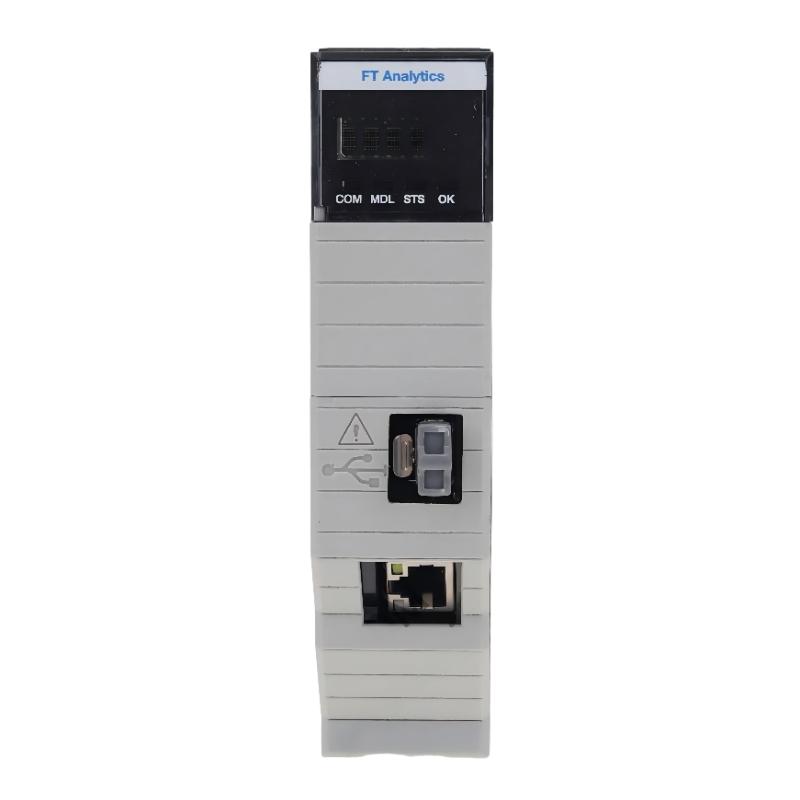
The Allen-Bradley 1756-CMS1B4 FactoryTalk Analytics LogixAI Module is an industrial analytics module designed to work with ControlLogix 5570 and ControlLogix 5580 controllers. It uses controller data and predictive analytics to identify abnormal operating patterns, estimate process values, and support maintenance decisions. A successful installation requires correct ControlLogix chassis mounting, Ethernet configuration, software licensing, controller communication, and prediction model setup.
This guide covers the practical installation and commissioning process for the 1756-CMS1B4, from initial hardware preparation to the creation and activation of a predictive model.
Contents: 1756-CMS1B4 Installation and Setup
- Module Overview and Operating Architecture
- Installation Preparation and Compatibility
- Hardware Installation in the ControlLogix Chassis
- Ethernet Connection and IP Configuration
- FactoryTalk Analytics LogixAI Initial Configuration
- Prediction Model Creation and Tag Assignment
- Training, Calculation, and Commissioning
- Technical Specifications
- Technical FAQs
- Installation Conclusion
1. 1756-CMS1B4 Module Overview and Operating Architecture
The 1756-CMS1B4 is part of the Allen-Bradley ControlLogix compute module family. Unlike conventional digital or analog I/O modules, it is designed to provide an embedded analytics environment. FactoryTalk Analytics LogixAI uses operating data from a compatible ControlLogix controller to build prediction models and evaluate process behavior.
The module communicates with a ControlLogix 5570 or 5580 controller through the chassis backplane. Its embedded analytics software provides a browser-based configuration interface, while an Ethernet connection is used for configuration access and network communication.
Key Hardware Interfaces of the 1756-CMS1B4
- ControlLogix backplane interface: Provides communication with a compatible ControlLogix controller.
- Ethernet port: Provides a connection to a computer for configuration and network access.
- USB 3.0 port: Holds the USB licensing dongle required for module operation.
- DisplayPort: Supports connection to a compatible industrial monitor.
- Four-character display: Displays module information, including status and configured network information.
- Status indicators: Provide information about the module’s operating and communication condition.
- Reset button: Provides an orderly shutdown function when pressed and released.
Typical Industrial Applications
- Predictive maintenance for pumps, motors, and rotating equipment.
- Process anomaly detection in manufacturing systems.
- Equipment performance monitoring.
- Process value estimation and soft-sensor applications.
- Production quality monitoring.
- Operational data analysis in ControlLogix-based automation systems.
2. 1756-CMS1B4 Installation Preparation and Compatibility Checks
Before installing the 1756-CMS1B4, confirm that the existing control system provides the required hardware and network environment. The module is intended to operate with a ControlLogix 5570 or 5580 controller installed in a compatible 1756 chassis.
Required System Components
- Compatible ControlLogix 5570 or 5580 controller.
- Compatible ControlLogix 1756 chassis and power supply.
- Available chassis slot for the analytics module.
- RJ45 Ethernet cable.
- Computer with a compatible web browser.
- FactoryTalk Analytics LogixAI licensing information.
- Controller project and relevant tag documentation.
Check the Chassis Compatibility
The 1756-CMS1B4 can be installed in an available slot in a compatible ControlLogix chassis. The installation instructions identify support for 1756 Series B and Series C chassis. The module can be installed in a local or remote chassis relative to the controller, provided the system architecture and communication arrangement are supported.
Before installation, check the chassis series, power supply capacity, available slot, and existing module arrangement. Confirm that the intended controller is a supported 5570 or 5580 model. Do not assume that compatibility with the ControlLogix backplane means compatibility with every controller generation.
Inspect the Module and Licensing Dongle
Inspect the module housing, backplane connector, Ethernet port, USB port, and DisplayPort connection. The USB licensing dongle is essential: it must remain connected to the module’s USB port or to a USB hub connected to that port. Removing the dongle can prevent the analytics software from operating correctly.
Also check the module battery area. A red paper tab protects the battery during shipment and must be removed before installation. The battery maintains the module’s real-time clock when the module is without power.
3. Allen-Bradley 1756-CMS1B4 Hardware Installation in the ControlLogix Chassis
Correct mechanical installation is important for reliable backplane communication. Follow the ControlLogix chassis installation procedure and observe the required electrical safety precautions.
Pre-installation Safety Checks
- Confirm that the installation is performed by qualified personnel.
- Follow the site’s lockout/tagout and electrical isolation procedures.
- Use an approved grounding wrist strap when handling the module.
- Avoid touching circuit board components and connector pins.
- Keep the module in static-safe packaging until installation.
- Verify that the installation environment meets the required temperature and enclosure conditions.
Remove the Battery Paper Tab
Before inserting the 1756-CMS1B4 into the chassis, locate the red paper tab covering the battery contact area. Remove the tab completely. Leaving it in place can prevent the battery from maintaining the module’s real-time clock as intended.
Mounting Procedure
- Identify the intended open slot in the ControlLogix chassis.
- Confirm that the chassis is in the required safe installation condition.
- Align the module circuit board with the upper and lower chassis guides.
- Slide the module carefully into the slot.
- Continue inserting until the module snaps into its installed position.
- Check that the module front is flush with the other installed devices.
- Inspect the surrounding modules and confirm that the installation is mechanically secure.
Do not force the module into the slot. If resistance is abnormal, remove it according to the approved procedure and check the guide alignment and backplane connector condition.
Important Power and Environmental Conditions
The 1756-CMS1B4 has a rated supply requirement of 5.1 VDC at 1.40 A. Include this load when checking the chassis power supply capacity. The maximum permitted surrounding air temperature depends on the chassis series: the specified range is -25 to +50 °C for Series B and -25 to +60 °C for Series C.
The module is open-style equipment intended for installation inside a suitable industrial enclosure. The enclosure must provide appropriate protection against environmental conditions and access to live parts.
4. 1756-CMS1B4 Ethernet Connection and IP Configuration
The Ethernet interface is used to connect a computer to the LogixAI module for initial configuration. A direct connection is a practical way to complete the first setup without depending on the plant network’s existing addressing arrangement.
Connect the Ethernet Cable
- Identify the module’s embedded Ethernet port.
- Prepare a suitable RJ45 Ethernet cable.
- Connect the cable between the module and the configuration computer or approved network connection.
- Check the connector retention and cable condition.
- Confirm that the computer’s network adapter is enabled.
In hazardous locations, follow the applicable power isolation and area classification requirements before connecting or disconnecting Ethernet cables.
Access the Default IP Address
The documented default IP address of the 1756-CMS1B4 is 192.168.100.1. For an initial direct connection, configure the computer’s Ethernet adapter in the same subnet.
For example, the computer can use the following temporary network settings:
| Parameter | Example Setting |
|---|---|
| Module IP address | 192.168.100.1 |
| Computer IP address | 192.168.100.20 |
| Subnet mask | 255.255.255.0 |
| Default gateway | Not required for a direct local connection |
Open the LogixAI Configuration Interface
- Open the computer’s network adapter settings.
- Set the computer’s IPv4 address to the same subnet as the module.
- Open a compatible web browser.
- Enter
http://192.168.100.1in the address bar. - Wait for the FactoryTalk Analytics LogixAI Get Started page to load.
- Select the required language and begin the configuration wizard.
If the page does not open, check the Ethernet link, computer IP address, subnet mask, cable, and module startup status before changing the module configuration.
5. FactoryTalk Analytics LogixAI Initial Configuration for the 1756-CMS1B4
After accessing the web interface, complete the initial configuration before creating prediction models. This step establishes the module identity, time settings, network parameters, and administrator security.
Configure the Basic Module Settings
| Setting | Configuration Purpose |
|---|---|
| Host Name | Defines the network name of the analytics module. |
| Date and Time | Sets the timestamp reference used by the module. |
| Time Zone | Aligns module timestamps with the plant’s time reference. |
| Serial Number | Identifies the product for software update and licensing administration. |
| Product Key | Provides the corresponding product activation information. |
| Network Options | Defines the module’s network configuration. |
| Security | Sets the administrator password. |
Entering the serial number and product key during initial setup is strongly recommended. Keeping this information in the module’s onboard memory makes future software update procedures easier to manage.
Complete the Configuration Wizard
- Choose the required language.
- Enter the module host name.
- Set the date, time, and time zone.
- Enter the serial number and product key together, or leave both fields blank if the applicable setup procedure permits it.
- Configure the network options according to the plant network plan.
- Set a secure administrator password.
- Review and accept the applicable End User License Agreements.
- Select Finish and Restart to complete the initial configuration.
- Restore the computer’s Ethernet adapter to its original network settings when the direct setup is complete.
6. 1756-CMS1B4 Prediction Model Creation and Controller Tag Assignment
After the module has been configured, the next stage is to create a prediction model. LogixAI uses selected controller tags to identify relationships between process variables and the operating condition or value being predicted.
Access the Analytics Web Services
Open the browser and enter the configured IP address of the LogixAI module. The configured address is also shown on the module’s four-character display. From the web interface, select the option to create a new prediction or conduct an experiment.
Define the Prediction Model
- Choose Create New Prediction.
- Enter a meaningful model name.
- Confirm the correct controller project.
- Select the tag acquisition method.
- Choose the process type.
- Select the prediction type.
- Enter a descriptive prediction name.
Select the Tag Acquisition Method
LogixAI provides two general approaches to obtaining tags for a prediction model:
- Load From Controller: Allows the module to retrieve tags from the connected controller project. The process may take several minutes when the controller contains a large number of tags.
- Import From File: Allows a prepared CSV or TXT file to provide a defined list of tags and related variable information.
Choose the method that best fits the application and the available controller documentation. Before importing tags, confirm that their names and data structures correspond to the intended controller project.
Choose the Process and Prediction Types
The process can be defined manually or selected through an available process tutorial. Example tutorial categories include boiler, generator, and pump applications.
Two important prediction types are available:
- Operation Monitoring: Evaluates deviations from an established operating baseline. It can support the identification of abnormal process behavior or quality changes.
- Value Estimation: Estimates a selected process value using related input variables. This approach can be used for suitable soft-sensor applications.
Assign the Variable of Interest and Input Variables
During tag assignment, select one tag as the Variable of Interest and assign the relevant Input Variables. The variable of interest is the value or condition that the model is intended to predict. Input variables represent the process information used by the prediction model.
For example, a pump application might use a pump condition or performance variable as the Variable of Interest, with flow, pressure, temperature, and operating load as potential input variables. The actual tag selection must be based on the process design and available controller data.
Set suitable upper and lower bounds for the selected variables. These limits should reflect the actual process operating range rather than arbitrary values.
7. Allen-Bradley 1756-CMS1B4 Training, Calculation, and Commissioning
Creating a prediction model is only part of the commissioning process. The model must be trained with representative operating data and evaluated before its results are used to support production decisions.
Export the Prediction Model
After defining the model and assigning tags, complete the review stage and save the model as an L5X file. The exported file contains a user-defined data type that must be imported into the appropriate controller project using compatible programming software.
Import the L5X Data Structure into the Controller Project
- Open the approved ControlLogix controller project.
- Import the L5X file generated by LogixAI.
- Review the imported user-defined data type and related tags.
- Check that the project references the intended controller and process variables.
- Compile or verify the project using the applicable programming software.
- Download changes only after obtaining the required authorization and following the plant change-control procedure.
Train the Prediction Model
During model training, the controller’s associated Train tag is set to 1. When training is complete, the tag returns to 0. Training should use representative normal operating data so the model can establish a useful baseline.
For a production application, avoid using data collected during known abnormal conditions as the only training reference. Review the operating period, process stability, sensor reliability, and data quality before accepting the model.
Start the Calculation Process
When training is complete and the model State tag indicates the documented ready condition of 2, the Calculate tag can be set to 1 to start analytics calculations. Monitor the resulting values and model status before using the output in operational decisions.
Commissioning Verification Checklist
| Inspection Item | Verification Method | Expected Condition |
|---|---|---|
| Chassis installation | Inspect module seating and chassis compatibility | Module fully seated in a supported slot |
| Battery paper tab | Inspect battery area before installation | Shipping tab removed |
| USB license dongle | Check USB port or approved connected hub | Dongle remains connected |
| Ethernet connection | Check cable and network link | Stable connection |
| Web interface | Open the configured module IP address | LogixAI interface accessible |
| Time configuration | Compare date and time with plant reference | Correct timestamp settings |
| Controller communication | Verify the intended controller project | Correct controller identified |
| Prediction model | Review model and tag assignments | Variables correctly assigned |
| Training | Monitor the Train and State tags | Training completes as expected |
| Calculation | Enable calculation and inspect results | Valid analytics output |
8. Allen-Bradley 1756-CMS1B4 Technical Specifications
The following specifications summarize the key installation and hardware information for the 1756-CMS1B4. Confirm the module series, chassis configuration, and applicable documentation when planning a replacement or system expansion.
| Parameter | Specification |
|---|---|
| Manufacturer | Allen-Bradley / Rockwell Automation |
| Catalog Number | 1756-CMS1B4 |
| Product Type | FactoryTalk Analytics LogixAI Module |
| Product Family | ControlLogix Compute Modules |
| Compatible Controllers | ControlLogix 5570 and 5580 |
| Backplane Communication | ControlLogix system backplane |
| Ethernet Interface | 1 embedded Ethernet port |
| USB Interface | 1 USB 3.0 device port |
| USB Licensing | Required licensing dongle |
| Display Interface | Integrated DisplayPort |
| Supply Rating | 5.1 VDC at 1.40 A |
| Module Width | 34.55 mm |
| Module Height | 145.20 mm |
| Module Depth | 139.60 mm |
| Operating Temperature | Series B chassis: -25 to +50 °C; Series C chassis: -25 to +60 °C |
| Battery Type | Panasonic BR1225A coin-type lithium battery |
| Installation | ControlLogix 1756 chassis |
9. Technical FAQs About the 1756-CMS1B4 LogixAI Module
What is the main function of the 1756-CMS1B4?
The 1756-CMS1B4 runs FactoryTalk Analytics LogixAI software to analyze ControlLogix operating data. It supports predictive analytics, operating anomaly detection, and process value estimation.
Which controllers are compatible with the 1756-CMS1B4?
The module is designed to communicate through the system backplane with ControlLogix 5570 and 5580 controllers. Confirm the exact controller model and system configuration before installation.
Can the 1756-CMS1B4 be installed in any ControlLogix chassis slot?
The installation instructions permit installation in an available slot in a compatible ControlLogix chassis. Check the supported chassis series and overall system configuration before installation.
Does the 1756-CMS1B4 require a USB license dongle?
Yes. The USB 3.0 port is equipped with a dongle that provides software licensing. The dongle must remain connected to the module or to a USB hub connected to the module.
What is the default IP address of the LogixAI module?
The documented default IP address is 192.168.100.1. A computer can access the initial configuration page by using an address in the same subnet.
Does the 1756-CMS1B4 replace a ControlLogix CPU?
No. It is an analytics compute module, not a replacement for the ControlLogix controller. It works with a compatible controller through the system backplane.
What is the purpose of the DisplayPort interface?
The DisplayPort connection allows a compatible industrial monitor to be connected to the module. Depending on the monitor, a suitable VESA-certified adapter may be required.
What battery is used in the 1756-CMS1B4?
The module uses a Panasonic BR1225A coin-type lithium battery to maintain its real-time clock when power is removed.
What does the Train tag do in a prediction model?
The Train tag initiates model training when set to 1. After training is complete, it returns to 0. Training data should represent the intended normal operating condition.
What should be checked if the LogixAI web page cannot be accessed?
Check the Ethernet cable, computer IPv4 settings, module IP address, module startup status, and network connection. For initial direct access, verify that the computer and module are in the same subnet.
10. Installation Conclusion: Allen-Bradley 1756-CMS1B4 FactoryTalk Analytics LogixAI
The Allen-Bradley 1756-CMS1B4 provides a dedicated FactoryTalk Analytics LogixAI environment for predictive analytics in ControlLogix 5570 and 5580 systems. Successful commissioning involves more than inserting the module into a chassis. The battery shipping tab, USB licensing dongle, Ethernet configuration, administrator security, controller project, and prediction model must all be handled correctly.
By following a structured installation and commissioning process, engineers can establish reliable communication between the analytics module and the ControlLogix controller, prepare meaningful process data, and deploy prediction models in a controlled manner. Careful validation of model training and calculation results is essential before analytics outputs are used to support production or maintenance decisions.